
Time tracking
Start Clockify timers directly from monday.com without leaving your board. Open any project or task item, fill in the time entry details, and start tracking — the timer runs in Clockify under your user account. Multiple team members can track time against the same project or task simultaneously.
Prerequisites
Before you can start timers from monday.com, make sure:
- The Clockify Connector app is installed in both Clockify and monday.com (see Getting started).
- The board is configured to sync Projects or Tasks (not Time Entries or Clients).
- Synchronization is enabled on the board.
- Your monday.com user email matches a user in the connected Clockify workspace.
- The monday item you want to track time against has already been synced to Clockify.
Starting a timer
-
Open a project or task item on a board configured for Clockify sync.
-
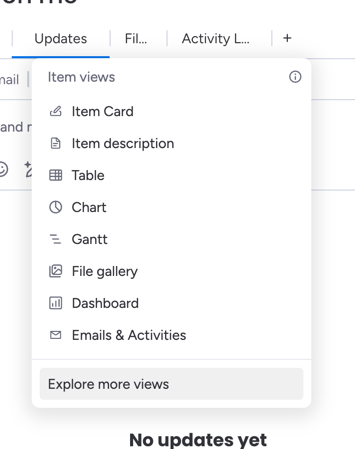
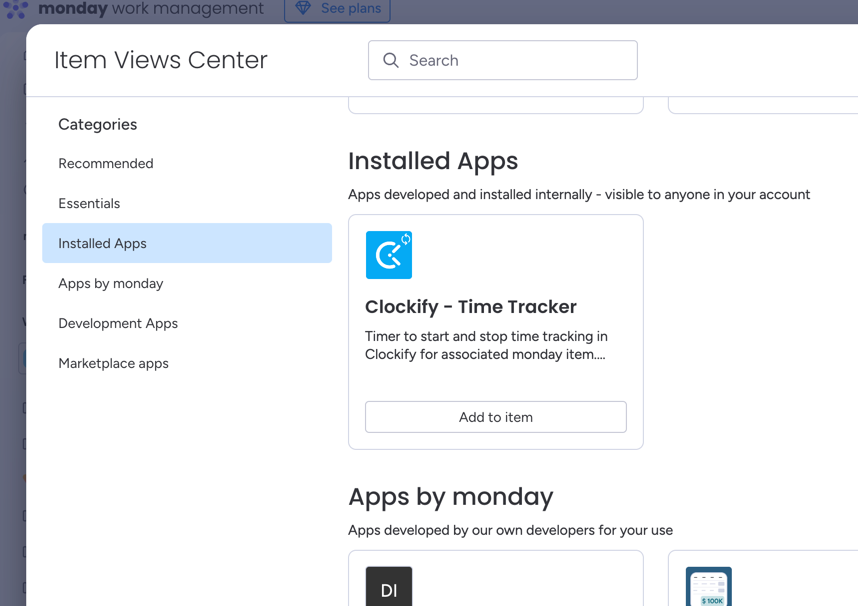
If this is your first time, add the Clockify - Time Tracker item view. Click the + button in the item view tabs, select Explore more views, and find the app.
-
Click on the Clockify - Time Tracker tab in the item view.
-
Fill in the time entry form:
- Description — a summary of what you’re working on (always required).
- Billable — toggle on if this time should be marked as billable.
- Tags — select one or more tags from your Clockify workspace.
- Custom fields — fill in any custom fields configured in your Clockify workspace.
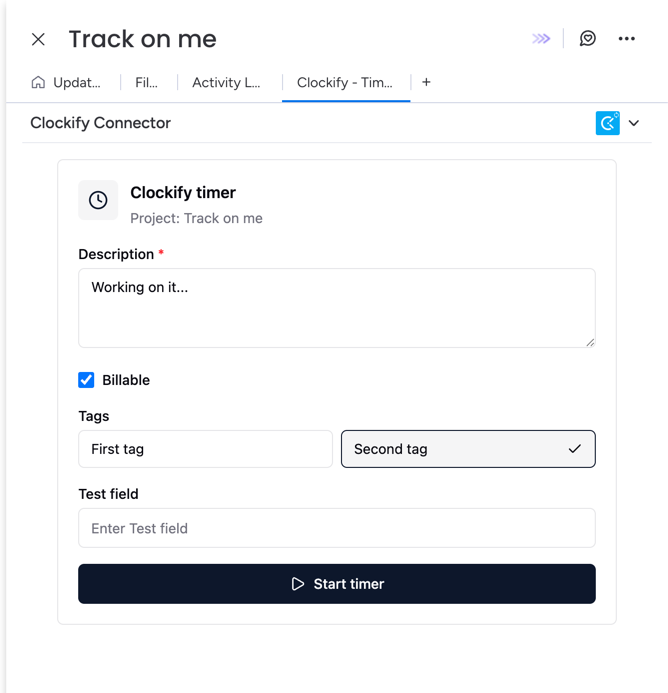
- Click Start to begin the timer. The timer starts in Clockify under your user account (matched by email).
Stopping a timer
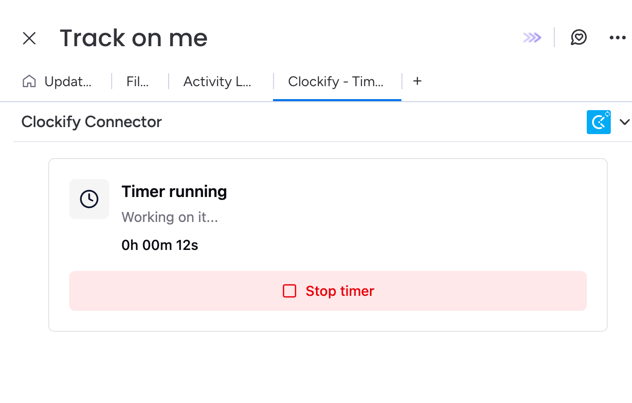
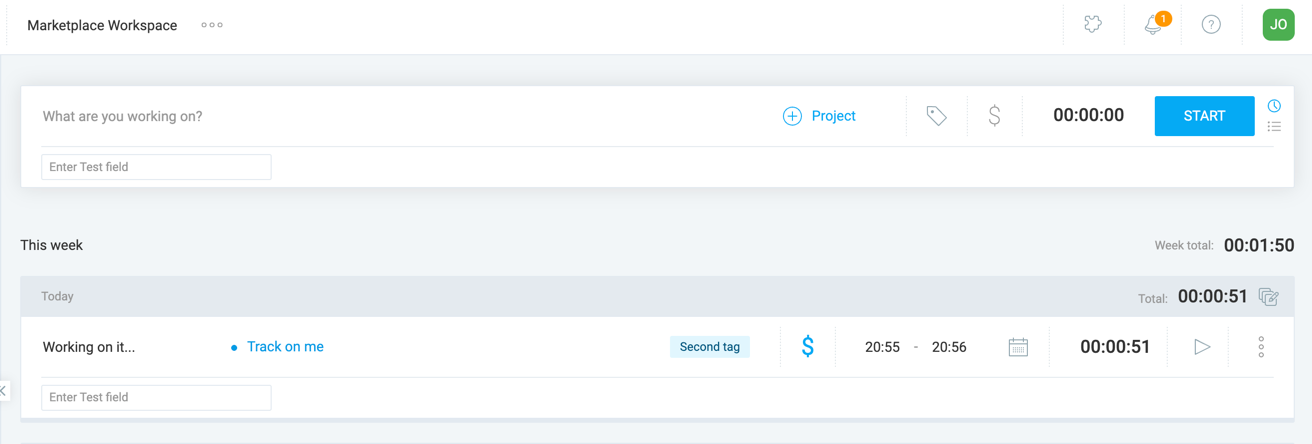
When a timer is running, the item view shows the active timer with elapsed time. Click Stop to end the timer. The completed time entry is saved in Clockify.
How timers sync to Time Entry boards
When you start or stop a timer, the time entry is created or updated in Clockify. If you have a Time Entry board configured with Clockify sync enabled, the existing webhook-based synchronization automatically creates or updates the corresponding monday item on that board.
You do not need to do anything extra — the same sync mechanism used for all Clockify-to-monday synchronization handles timer entries.
Troubleshooting
Timer is unavailable on my board
The timer feature only works on boards configured for Projects or Tasks. If your board is configured for Time Entries or Clients, the timer will be shown as unavailable. Start timers from a Project or Task board instead.
My email does not match a Clockify user
The timer starts under your Clockify user account, matched by email. If your monday.com email address does not match any user in the connected Clockify workspace, you will see an error. Make sure your email is the same in both systems.
Required fields error when starting
The timer will not start if required fields are not filled in. Check that you have entered a description, selected tags (if your workspace enforces them), and filled in any required custom fields.
Item not yet synced
The monday item must be synced to Clockify before you can start a timer against it. Make sure synchronization is enabled and the item has been synced. You can check this in the execution logs.
Timer or time entries not showing in Clockify
Clockify does not update the page automatically. Refresh the Clockify page to see new time entries or the current timer status (running/paused).